You're probably here because some fancy new mod for Lethal Company, Valheim, or Risk of Rain 2 told you it "requires BepInEx" to function. And honestly, mod managers like r2modman are great, but sometimes they just... fail. Or maybe you're like me and you just prefer knowing exactly where every single file is sitting on your hard drive.
Learning how to manually install BepInEx is basically the "rite of passage" for Unity game modding. It's the skeleton that holds everything else up. If the skeleton is crooked, your mods won't even load, or worse, your game will just crash to desktop without so much as an error message.
It's not actually hard. You just have to be precise.
The BepInEx Download: Don't Grab the Wrong One
First things first: you can't just go to GitHub and click the first "Download" button you see. BepInEx is picky.
Most Unity games people mod today use the Mono runtime, but newer ones (and certain VR titles) might use IL2CPP. If you grab an IL2CPP build for a Mono game, nothing happens. No console, no mods, just sadness.
- Head over to the official BepInEx GitHub releases.
- Look for the "Stable" tag. Seriously, unless you’re a developer, stay away from "Bleeding Edge" builds.
- For most games in 2026, you'll want BepInEx_x64_5.4.x.x.zip. If your game is ancient and runs on a 32-bit system (you'll see "32-bit" in Task Manager when it's running), grab the x86 version.
Pro Tip: If you're modding a game specifically through Thunderstore (like Valheim), they often have a "BepInExPack" which is just BepInEx pre-configured with the right settings for that specific game. It's usually a safer bet for beginners.
Finding Your Game's "Root" Folder
This is where 90% of people mess up. They install it into the Downloads folder or some random Mods folder they created. Nope.
BepInEx needs to live right next to the game’s executable file (the .exe).
If you're on Steam, this is easy. Right-click the game in your library, hover over Manage, and click Browse local files. A folder will pop up. This is your "Root." You should see the game's name (e.g., Lethal Company.exe) and a folder ending in _Data (e.g., Lethal Company_Data).
If you don't see the .exe file, you're in the wrong place. Keep digging.
How to Manually Install BepInEx: The File Shuffle
Now that you have your zip file and your game folder open, it's time to actually do the deed.
Open the zip file. You'll likely see a few things:
- A folder named
BepInEx doorstop_config.iniwinhttp.dll- Maybe a
changelog.txt
Do not just drag the zip file into the game folder. You need to extract the contents of that zip directly into the root.
When you're done, your game folder should look like a messy desk. The winhttp.dll file should be sitting right there in the same room as your game's executable. This is the "hook." When the game starts, it looks for winhttp.dll, finds the BepInEx version instead of the Windows version, and says, "Oh, I guess we're loading mods today."
The "First Run" Ritual
Don't install your mods yet.
Launch the game once. Just get to the main menu and then quit.
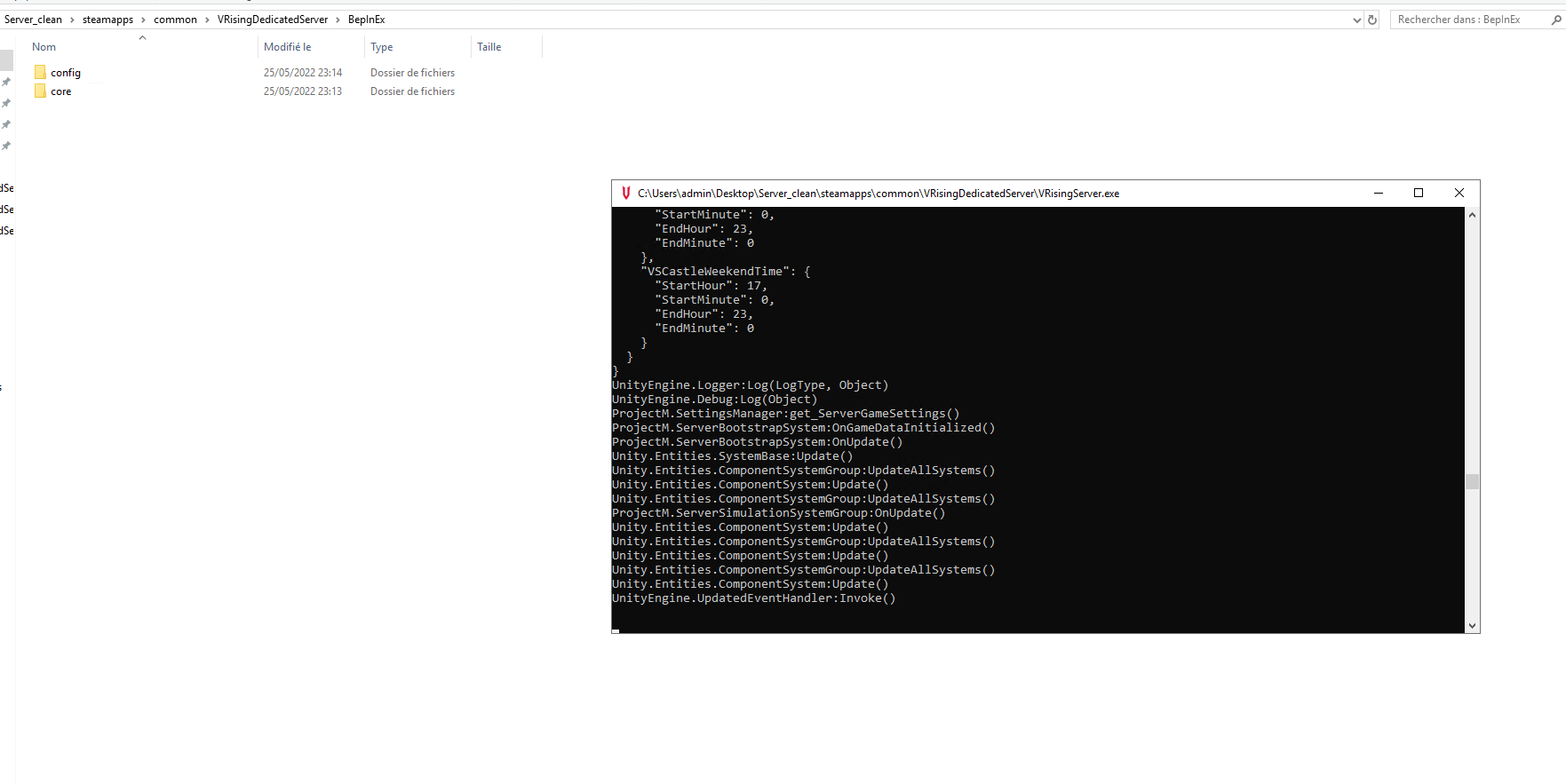
Why? Because BepInEx needs to "birth" its own subfolders. When you run it for the first time, it generates a config folder and a plugins folder inside the BepInEx directory. If you see a black command console window pop up when the game starts, congratulations—you did it right.
Fixing the "It's Not Loading" Headache
If the game starts and looks totally normal—no console, no mods—something is wrong.
Check the "Bitness"
If you put the 64-bit version into a 32-bit game, it will silently ignore it. Go back to the GitHub and try the other version.
The winhttp.dll Rename Trick
Sometimes, a game has its own winhttp.dll or just refuses to look at it. You can often fix this by renaming the BepInEx winhttp.dll to version.dll. It's a weird quirk of how Windows loads files, but it works surprisingly often.
Steam Deck and Linux Users
If you’re on a Steam Deck, you have one extra annoying step. Steam's Proton (the thing that lets Windows games run on Linux) doesn't like custom DLLs. You have to tell it to allow it.
- Right-click the game in Steam.
- Go to Properties.
- In the Launch Options box, paste this exactly:
WINEDLLOVERRIDES="winhttp=n,b" %command%
If you don't do this, the Steam Deck will just ignore BepInEx entirely.
Where do the actual mods go?
Now that the hard part is over, actually using the mods is a breeze.
Most mods come as a .dll file. You take that file and drop it into GameFolder/BepInEx/plugins.
Some mods come with their own folder structures. Just make sure the .dll isn't buried ten folders deep. BepInEx usually scans about two folders deep in the plugins directory, but I like to keep it clean. One folder per mod is plenty.
Actionable Next Steps
- Verify your game architecture: Open the game, check Task Manager, and see if it's 64-bit.
- Download the matching BepInEx version: Stick to v5.4.x for maximum compatibility in 2026.
- Extract to the Root: Ensure
winhttp.dllis in the same folder as the game's.exe. - Run once to initialize: Check for that black console window.
- Configure: Open
BepInEx/config/BepInEx.cfgif you want to turn the console off later or change log settings.
Modding is essentially just a game of "put the file in the right box." Now that the box is set up, you can go nuts.